Features: Engage
Engage: keep families and staff connected
Notices, a calendar, messages, forms and interview bookings sit where families already look. Parents see their own children and only their own, so there are fewer phone calls and paper slips.
Parent portal
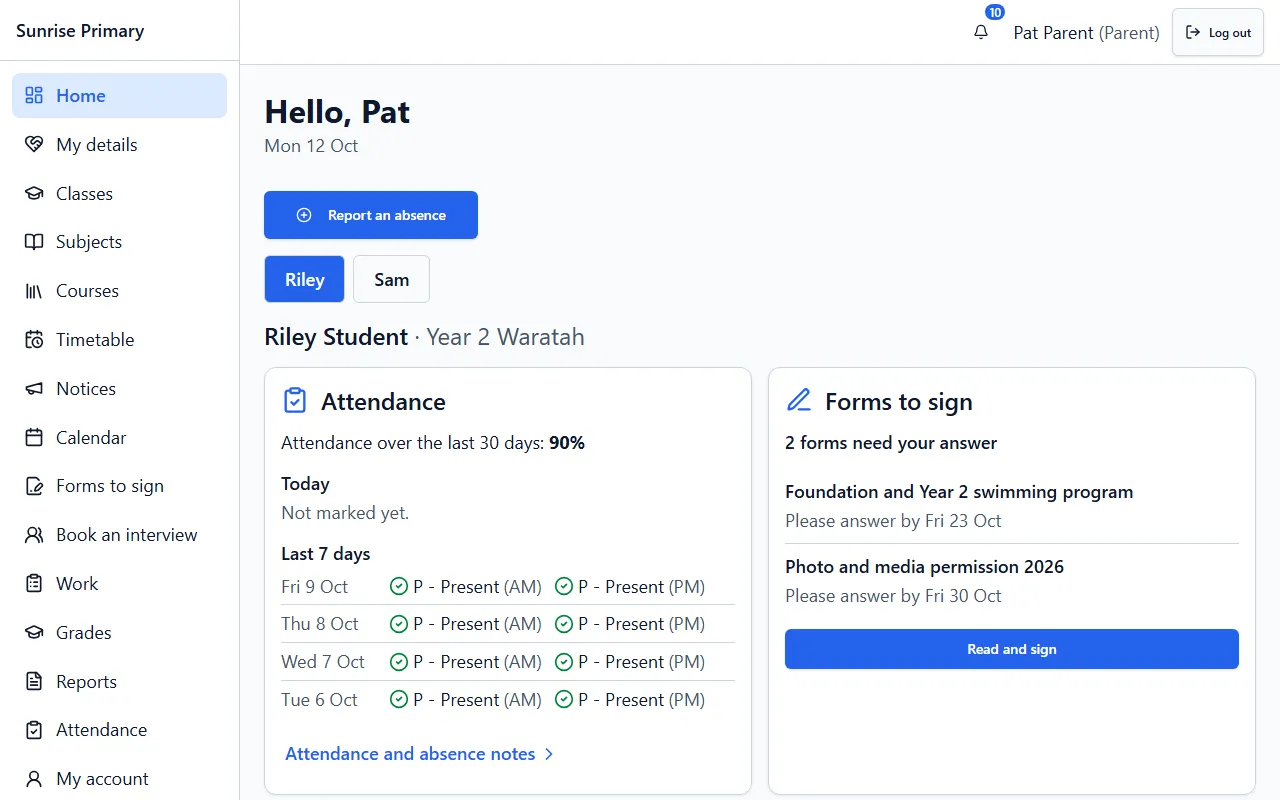
A parent signs in and sees a home screen for each of their children: attendance over the last 30 days, forms that need an answer, and a button to report an absence. The menu leads to notices, grades, reports and more.
Who can see itParents see only the children linked to them by the school.
Notices
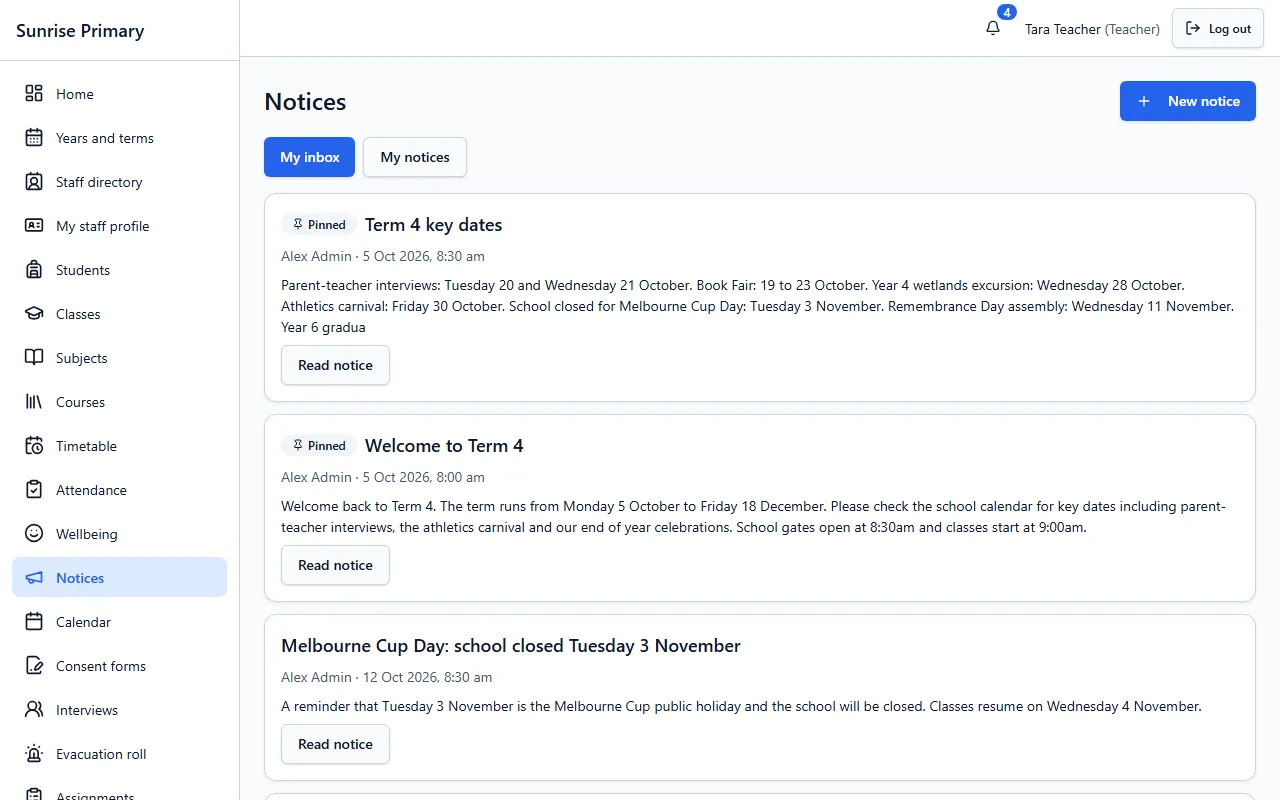
Staff write a notice and pin the important ones to the top, so term dates and reminders are the first thing people read. Staff have a My inbox tab and a My notices tab for the ones they wrote.
Who can see itStaff write notices. Staff and families read them in their own Notices list.
School calendar
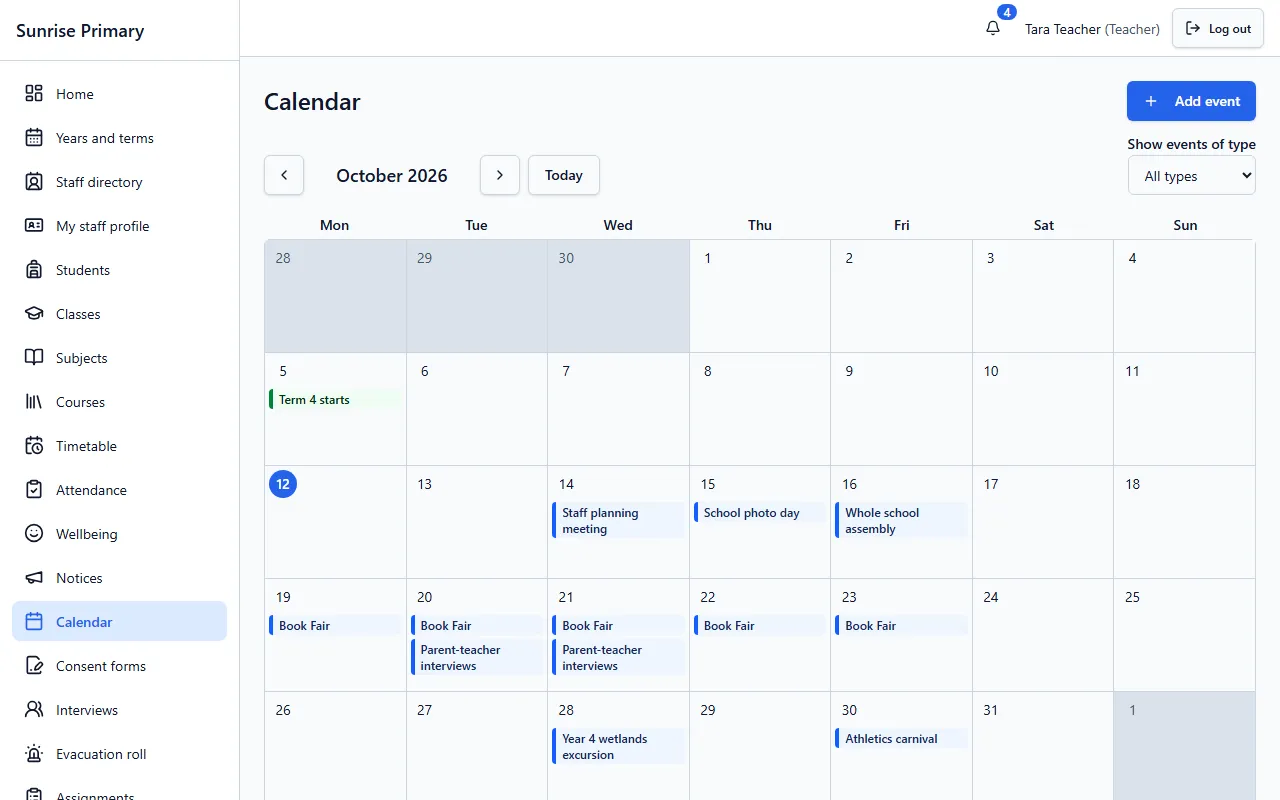
Term dates, events and excursions appear on one month calendar, and the view can be filtered by type of event. Staff with permission add events, and families open the same calendar to see what is coming.
Who can see itStaff and families both see the school calendar.
Messages
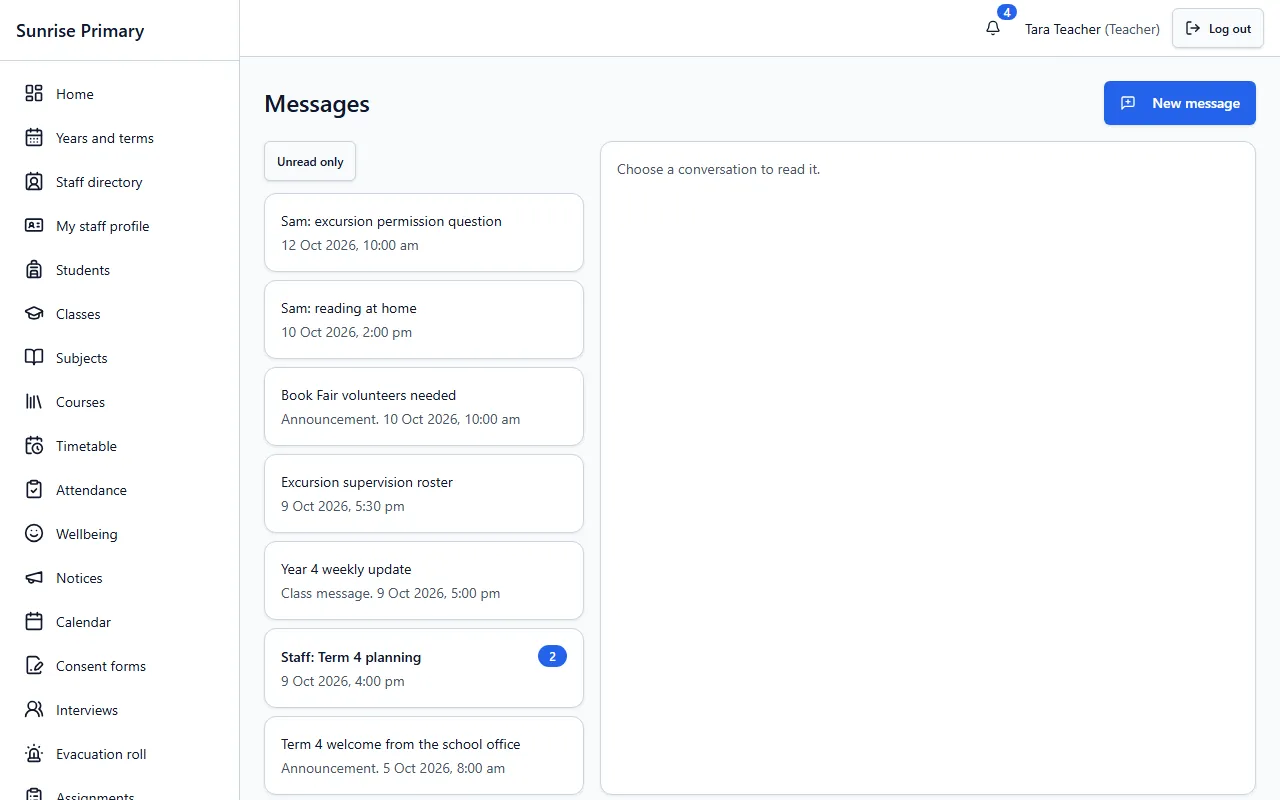
Conversations sit in one list with unread counts, whether they are with a family, a class announcement or a staff group. Staff start a new message from the same screen instead of using personal phones.
Who can see itOnly the people in a conversation can read it.
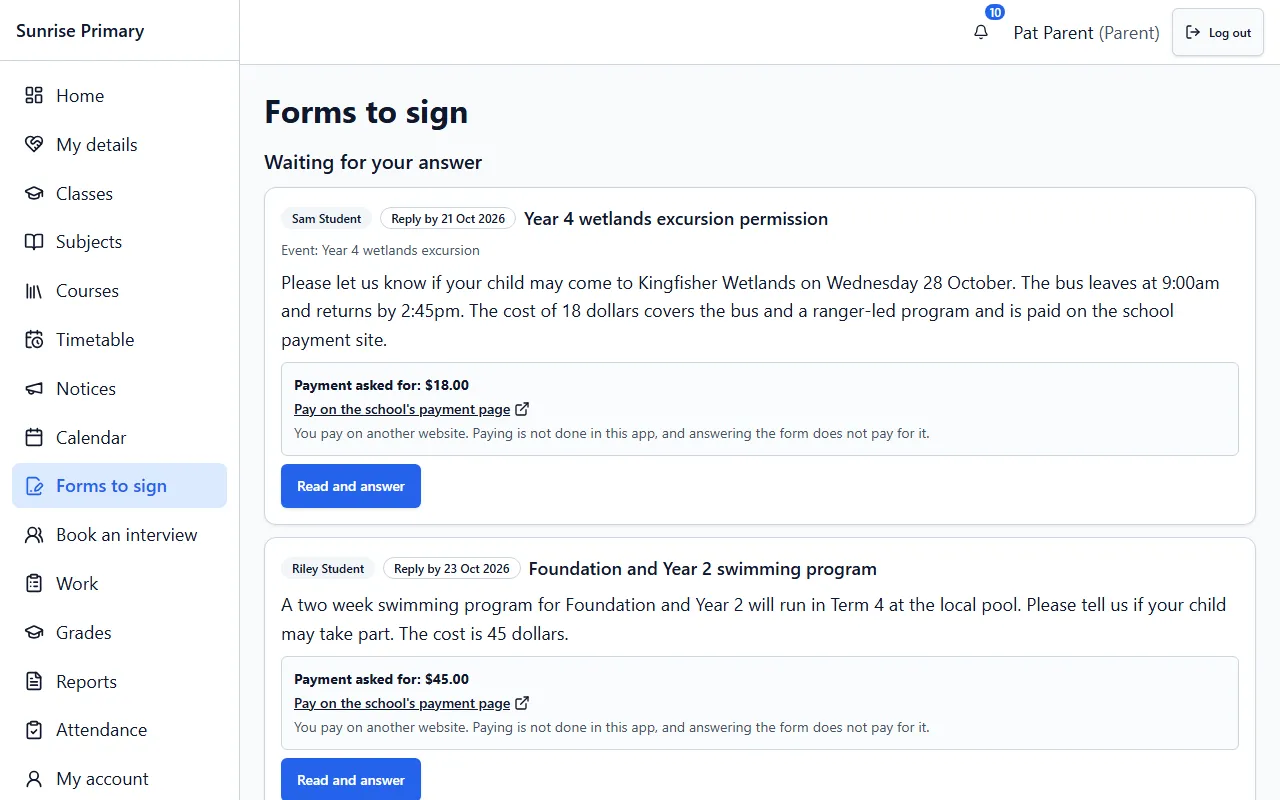
Consent and excursion forms
A parent opens Forms to sign, reads the form, and answers it for each child, with the reply-by date shown. If a school asks for money, the form links to the school’s own payment page. Paying is not done in the app, and answering does not pay.
Who can see itFamilies answer for their own children. Staff see who has replied.
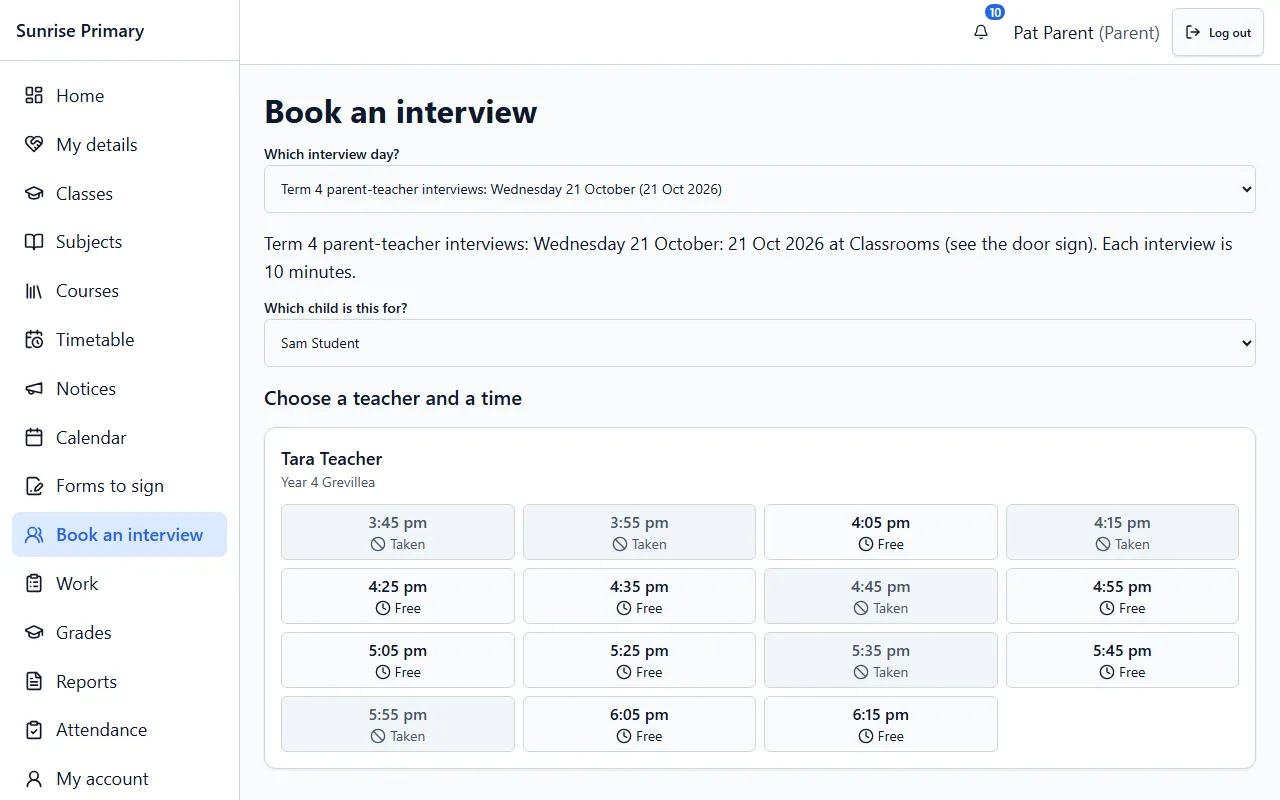
Interview booking
A parent picks the interview day, the child and a teacher, then chooses a free time. Booked times show as taken, so there is no sign-up sheet to manage. Teachers set up their own time slots.
Who can see itParents book for their own children. Teachers see their own schedule.
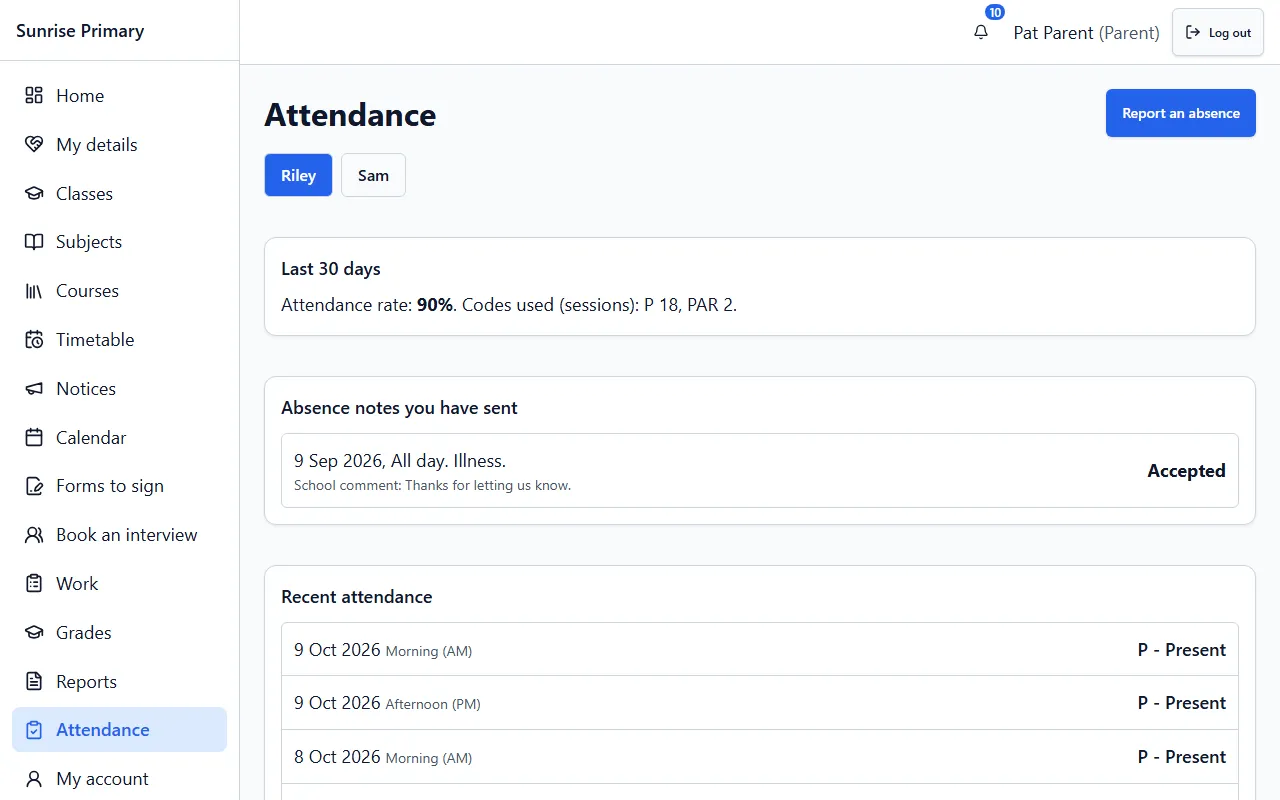
Absence notes online
A parent presses Report an absence, and the note appears with its status and any comment from the school. The same screen lists recent attendance, so families can see what was recorded.
Who can see itParents write notes for their own children. Staff see them in the Absence notes tab of Attendance.
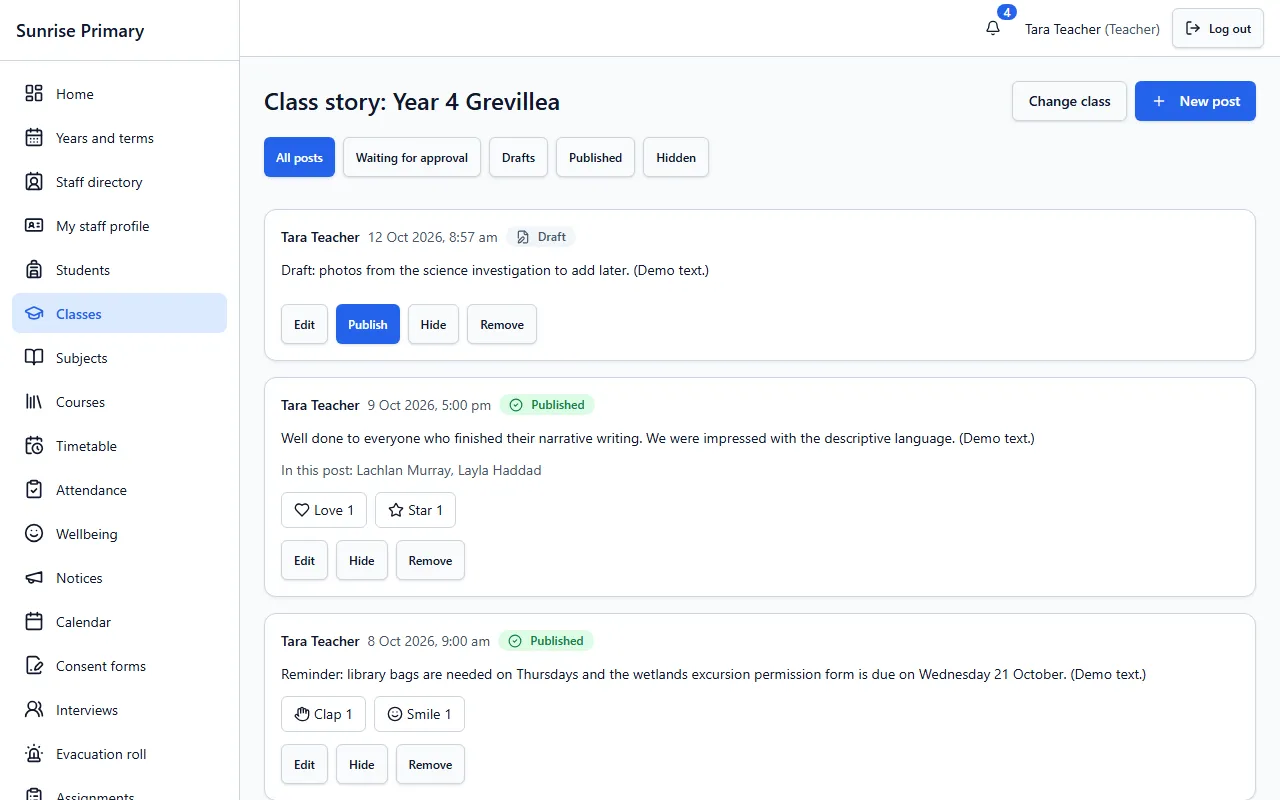
Class story
A teacher writes a post for the class, optionally tags students, and publishes it when ready. Posts can be drafts, waiting for approval, published or hidden, and families can react to what they see.
Who can see itStaff write and publish. Families of the class read the published posts.
Other feature groups
Every screen on these pages comes from a demo school with fictional people, or is labelled as a sample.
Ready to see it with your school?
Register for a free 30-day trial. No card needed.