Features: Manage
Manage: the daily running of the school
The roll, the timetable and the set-up of your school, handled in a few taps and kept tidy. Each school has its own separate space, and your people can sign in with the accounts they already use.
Attendance
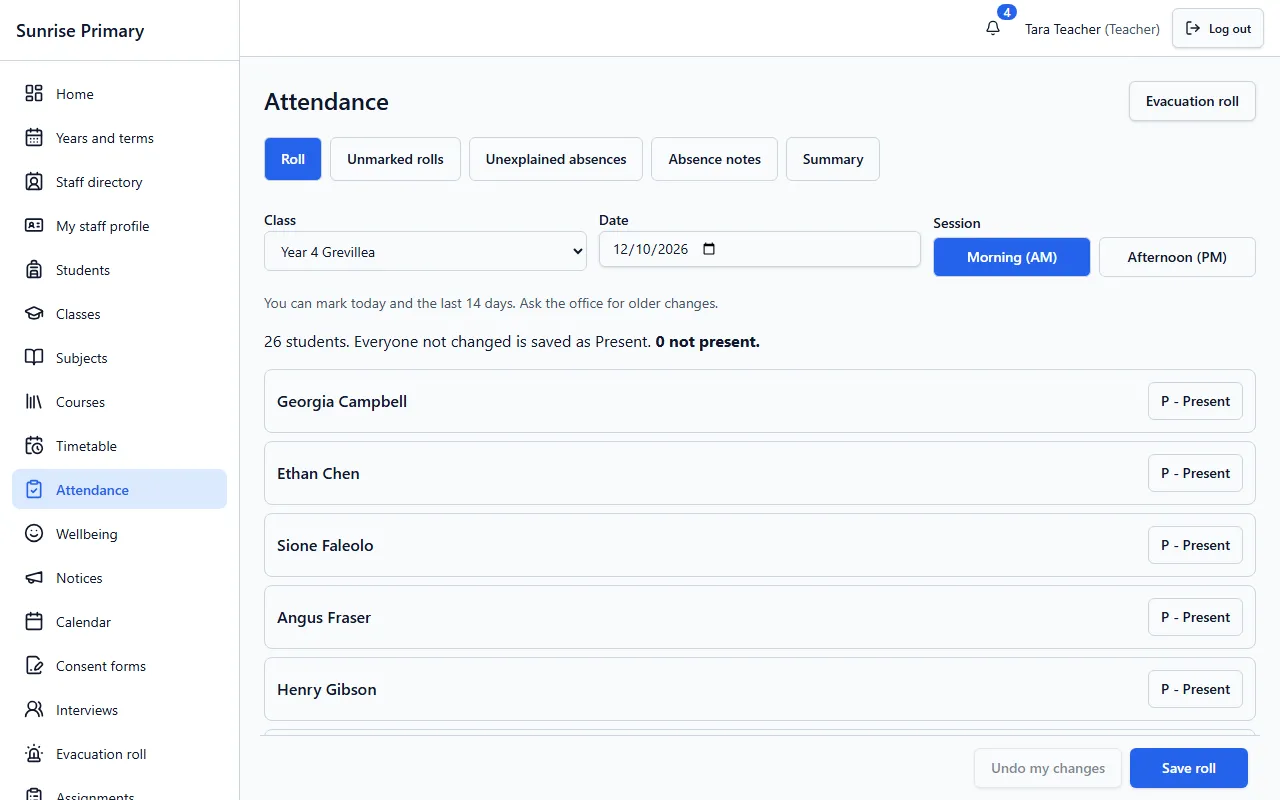
A teacher opens the class, picks the date and morning or afternoon, and everyone not changed is saved as present. Only the exceptions need a tap, then Save roll. The same screen has tabs for unmarked rolls, unexplained absences, absence notes and a summary.
Who can see itTeachers mark rolls for their classes. Families see the attendance of their own children.
Timetable
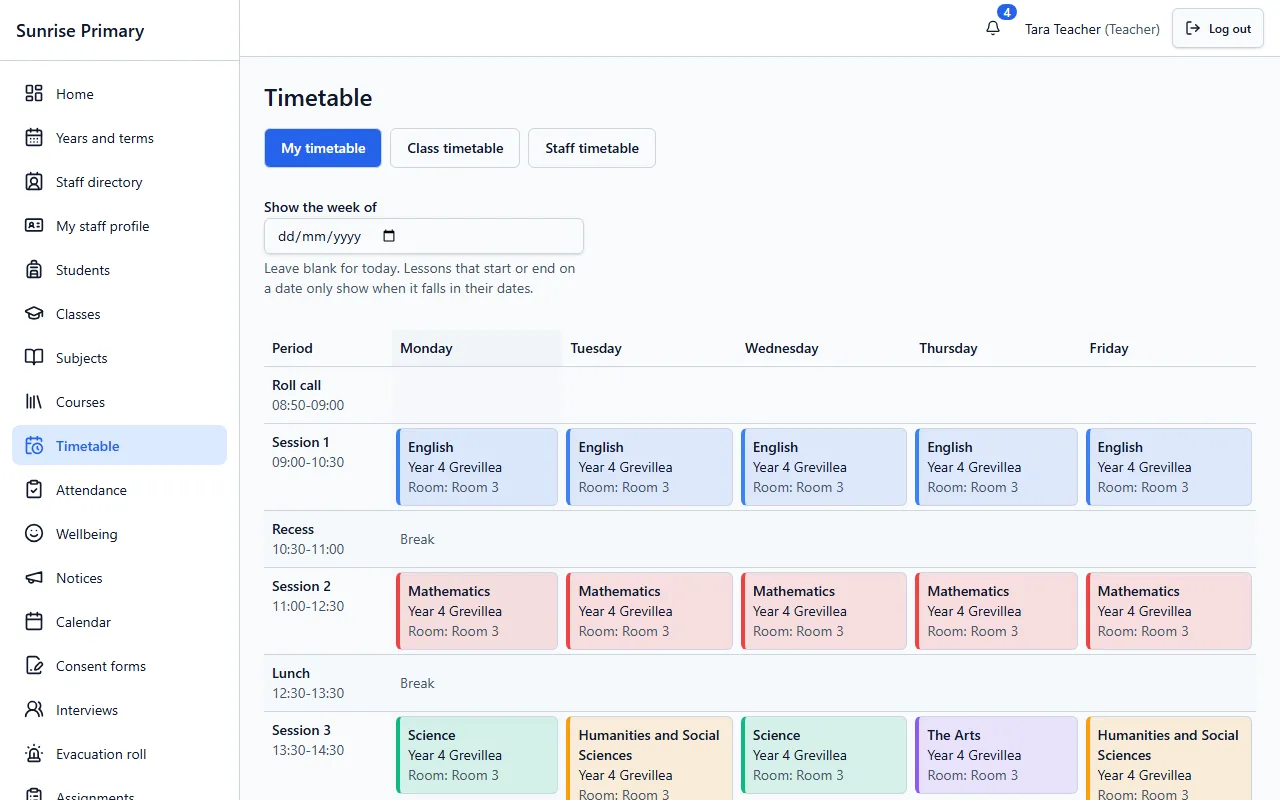
Periods, rooms and classes are laid out in a weekly grid, with lessons coloured by subject. Staff can switch between their own timetable, a class timetable and a staff timetable.
Who can see itStaff see their own and the school’s timetables. Students and families see the timetable for their own class.
Bulk import
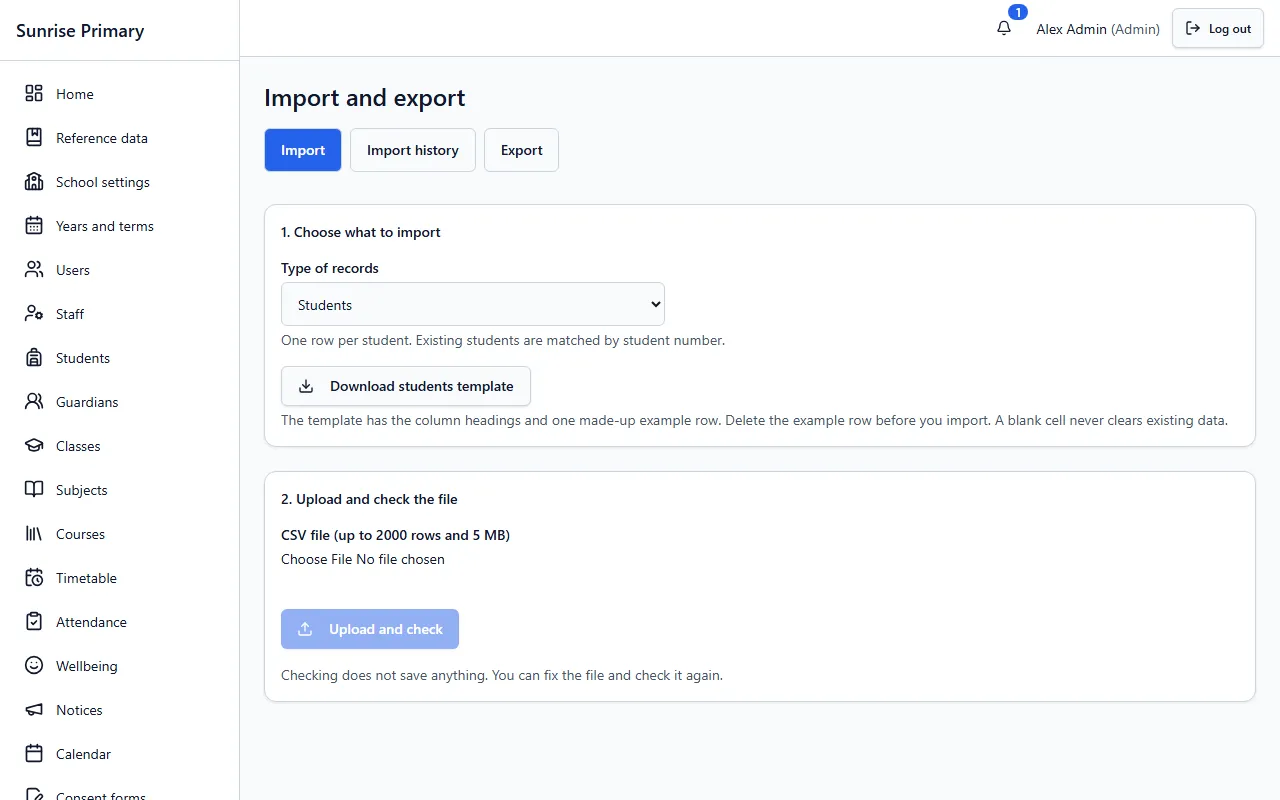
An administrator chooses the type of record, downloads a template with the column headings, fills it in from a spreadsheet and uploads the CSV file. The check does not save anything, so the file can be fixed and checked again. There is also an import history and an export tab.
Who can see itSchool administrators and managers.
Many schools, one platform
Each school gets its own separate space on a shared platform, with its own people, classes and records. A person signs in with their email or username and, where needed, their school code.
Who can see itPeople see only their own school’s space.
Google and Microsoft sign-in
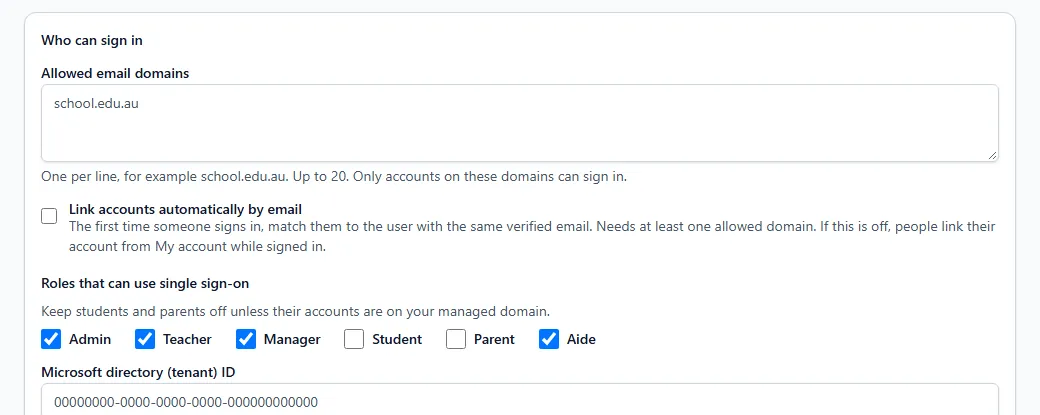
An administrator decides which email domains may sign in with a Google or Microsoft account and which roles may use it. Students and parents can be kept off unless their accounts are on the school’s managed domain.
Who can see itSchool administrators choose the settings. Sign-in works only for people who already have an account at the school.
Other feature groups
Every screen on these pages comes from a demo school with fictional people, or is labelled as a sample.
Ready to see it with your school?
Register for a free 30-day trial. No card needed.