Features: Learn
Learn: plan, teach, assess and celebrate
Teachers set up classes once, then run the gradebook, assignments, quizzes and curriculum records from the same place. Students and families see their own results and awards.
Classes and subjects
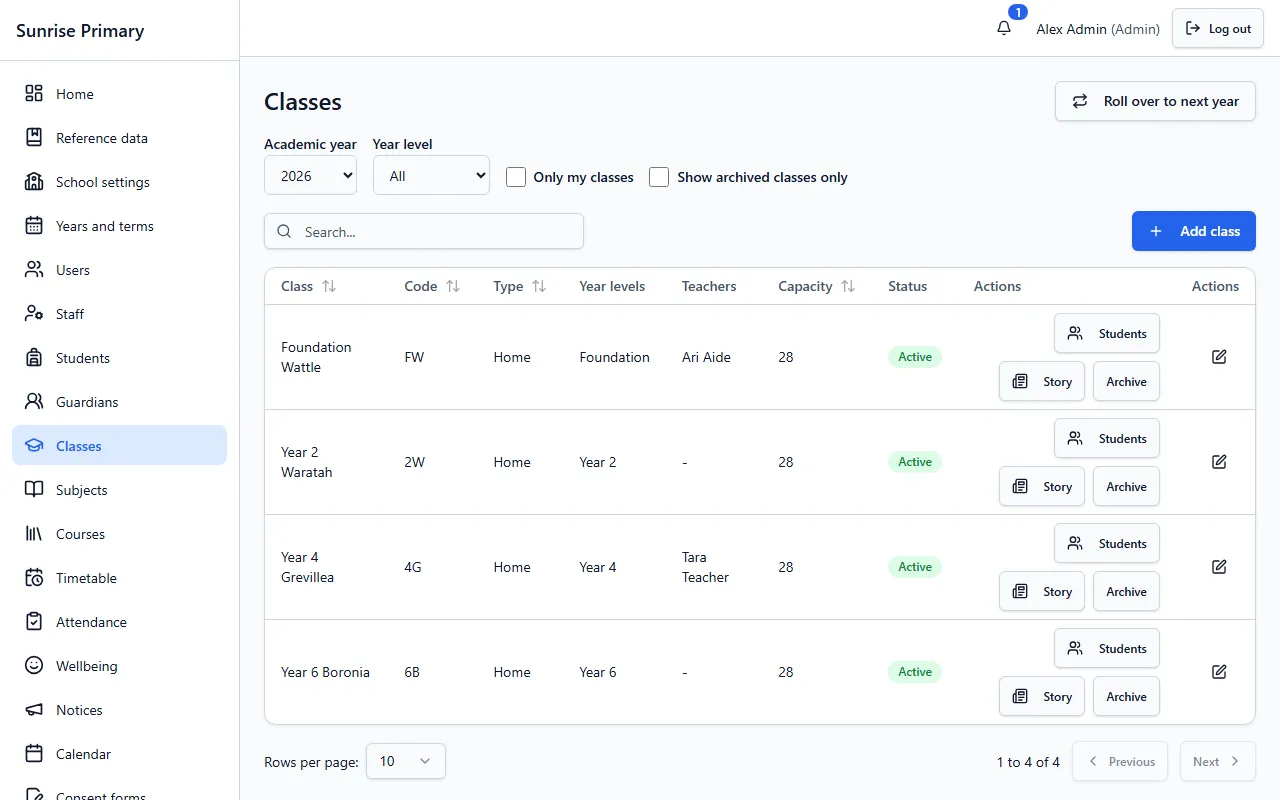
The school office sets up classes for the academic year once, with year levels, capacity and the teachers who look after them. Teachers then find those classes ready to use for the roll, gradebook and reports, and each class has its own class story.
Who can see itSchool administrators set classes up. Teachers use them in their own screens.
Gradebook
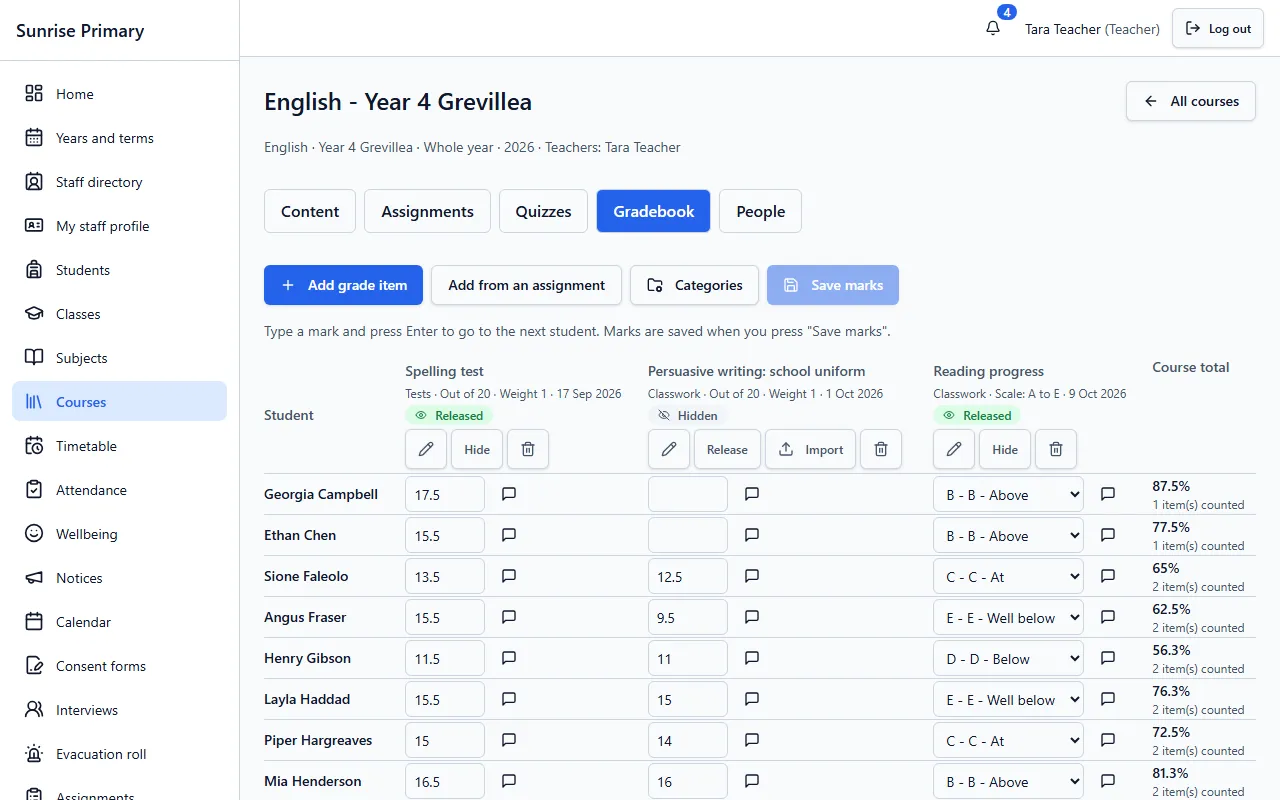
A teacher adds grade items to a course, types a mark or picks a grade for each student, and presses Save marks. Each item can be released to students when it is ready or kept hidden, and a running course total appears for every student.
Who can see itThe course teachers enter marks. Students see their own released results, and families see the results of their own children.
Assignments
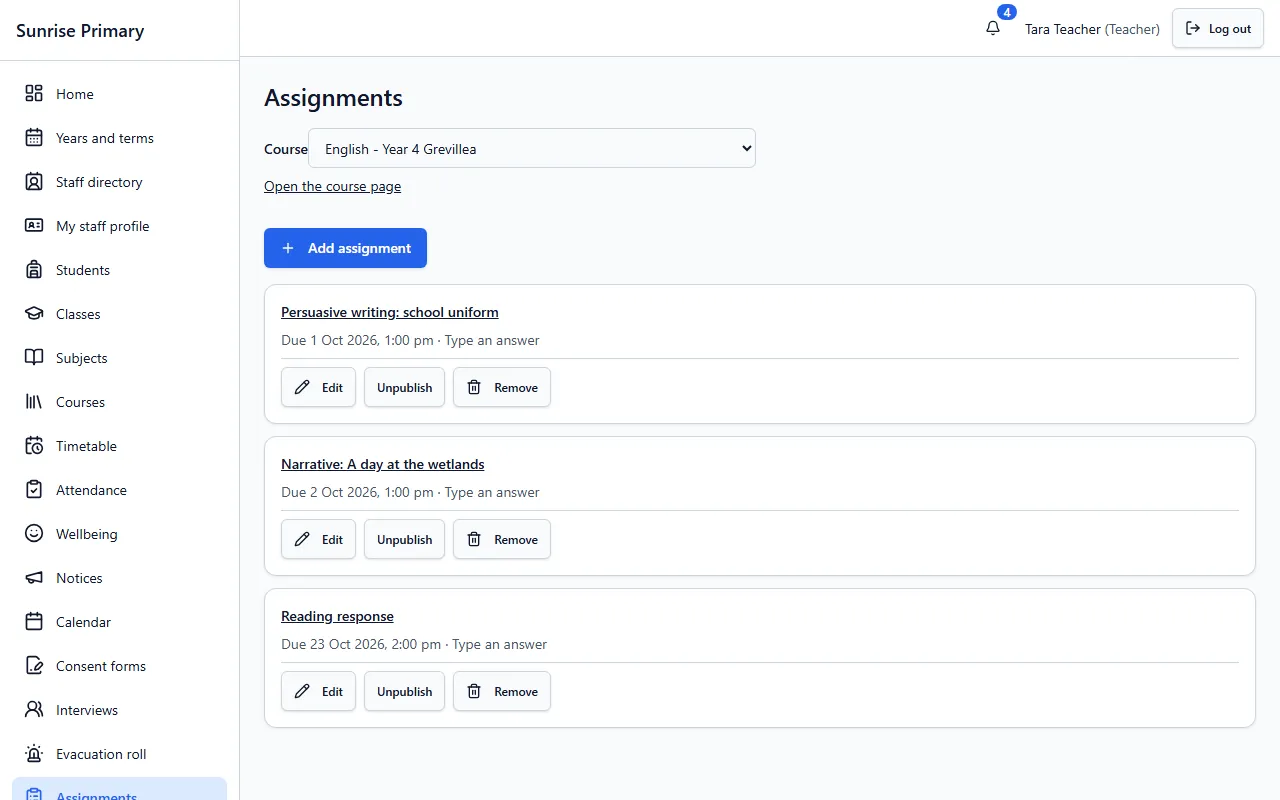
A teacher sets work for a course with a due date, publishes it when it is ready and can unpublish it to make changes. Students find it under My work and in their To do list on the home screen.
Who can see itTeachers create and manage assignments. Students see the work set for their courses, and families can see it for their own children.
Quizzes and question banks
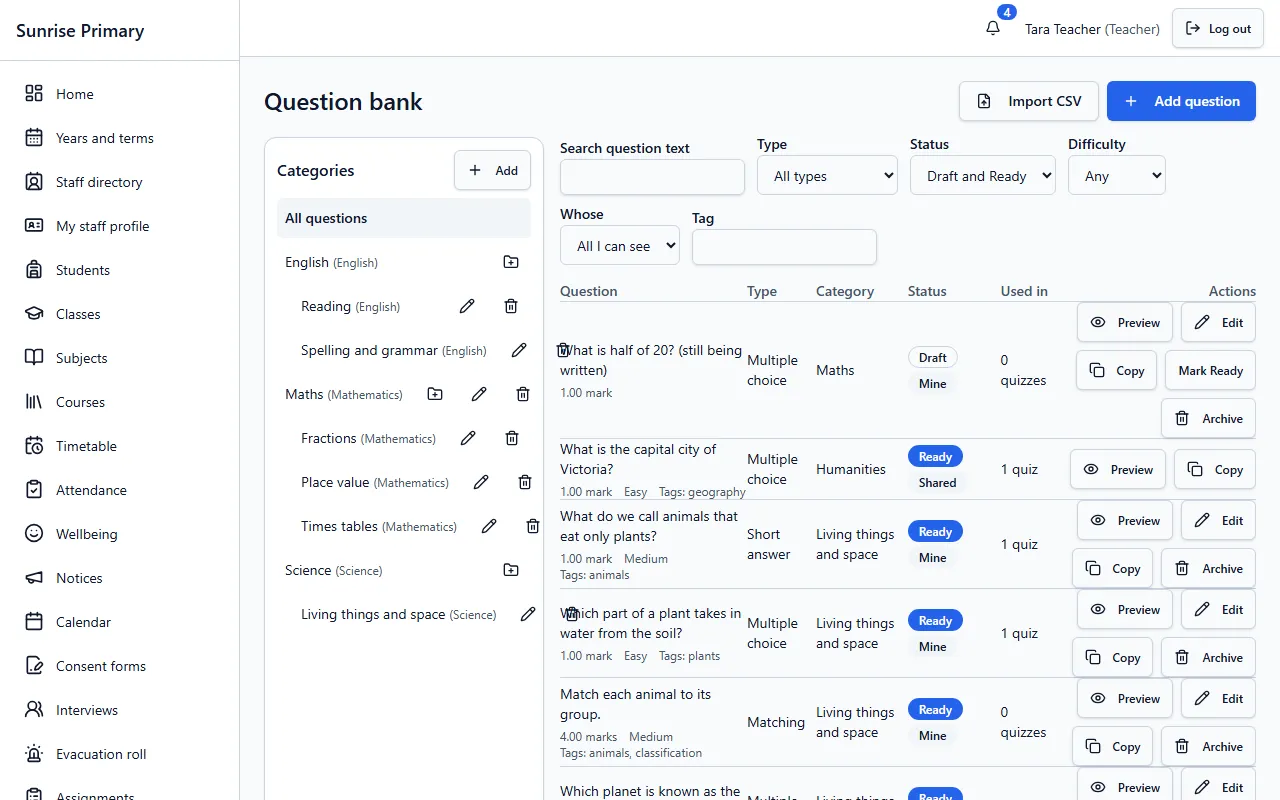
Teachers keep questions in a reusable bank, sorted into categories by subject, with a type, difficulty, tags and a Draft or Ready status. The bank shows how many quizzes use each question, and a question can be previewed, copied or shared with colleagues.
Who can see itTeachers. Questions marked Shared can be seen and copied by colleagues, and the rest stay with their owner.
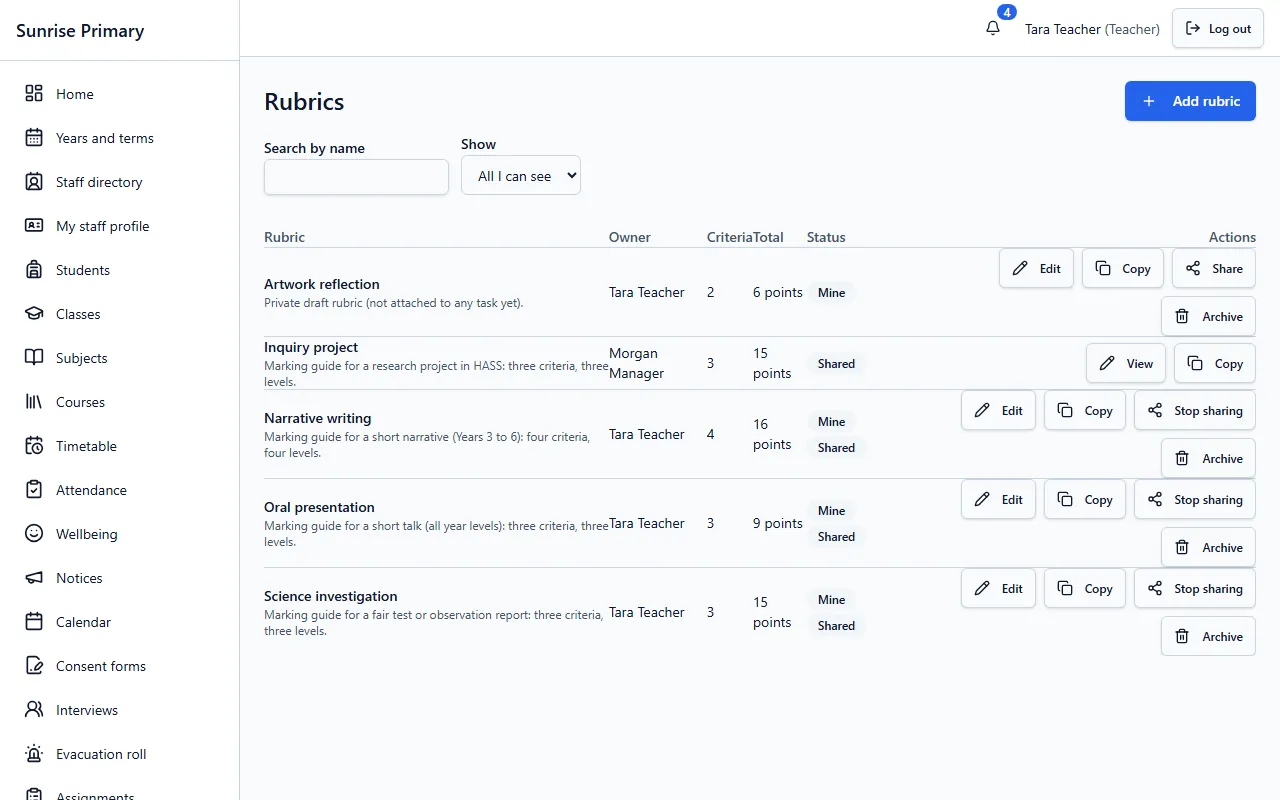
Rubrics
A teacher builds a marking guide with criteria and levels, keeps it private or shares it, and copies a shared rubric as a starting point for their own. Each rubric shows its owner, number of criteria and total points.
Who can see itTeachers. A shared rubric can be seen by colleagues, and a private one only by its owner.
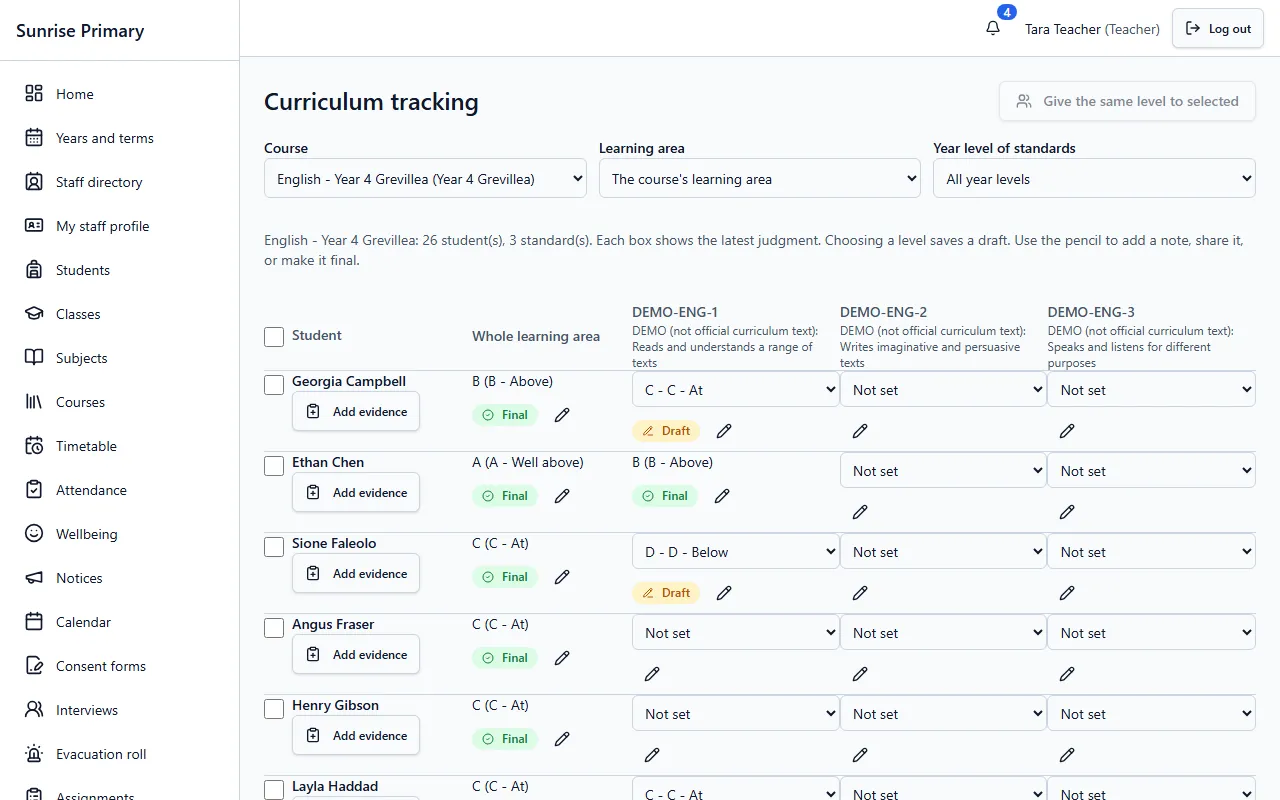
Curriculum tracking
A teacher picks a course and records a level for each student against each curriculum standard. A choice is saved as a draft until the teacher makes it final, and evidence can be added to a student. The demo standards on this screen are labelled as demo text, not official curriculum wording.
Who can see itTeachers record the judgements. Students and families have their own learning views for their own records.
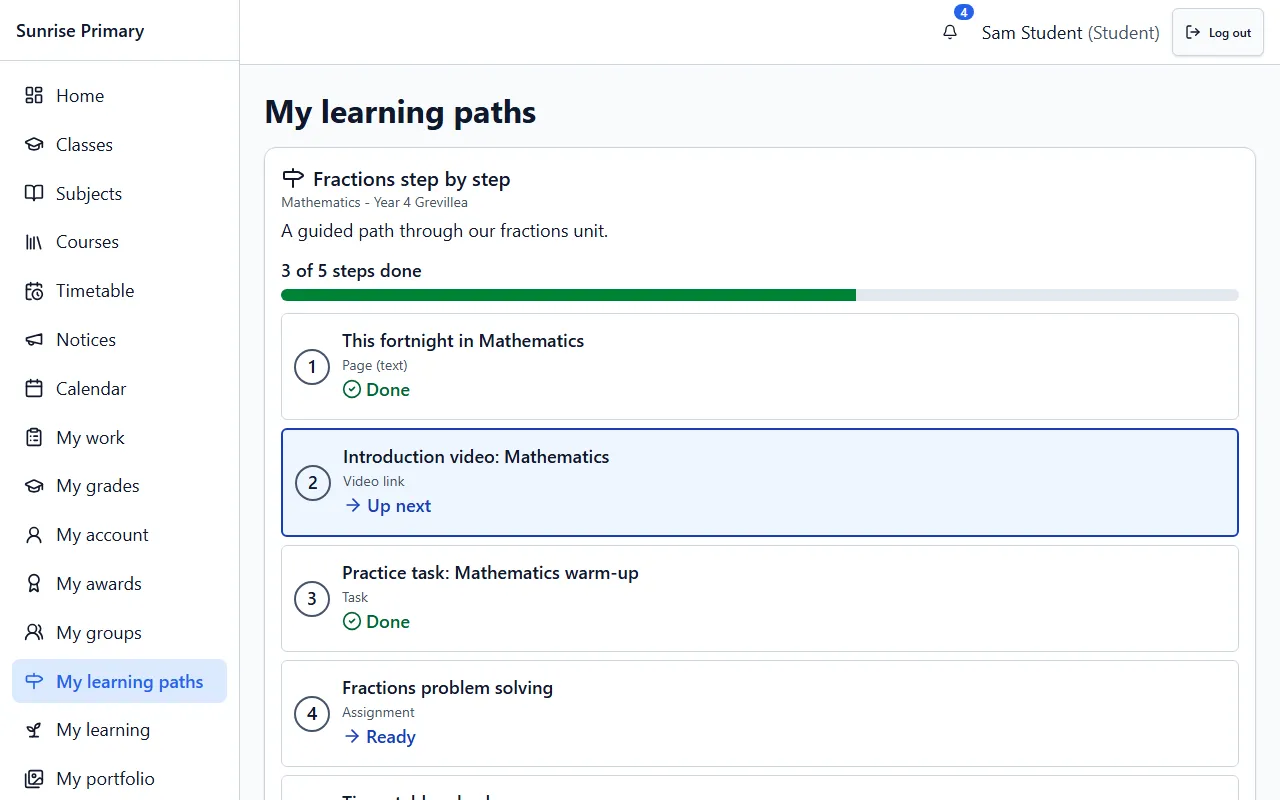
Learning paths
A teacher builds a path of steps, such as a page, a video, a task and an assignment, for a whole course or for chosen students. Each student sees their steps with what is done and what is up next, and the teacher can follow progress.
Who can see itTeachers build and follow paths. A student sees the paths they are part of, and families can see the paths of their own children.
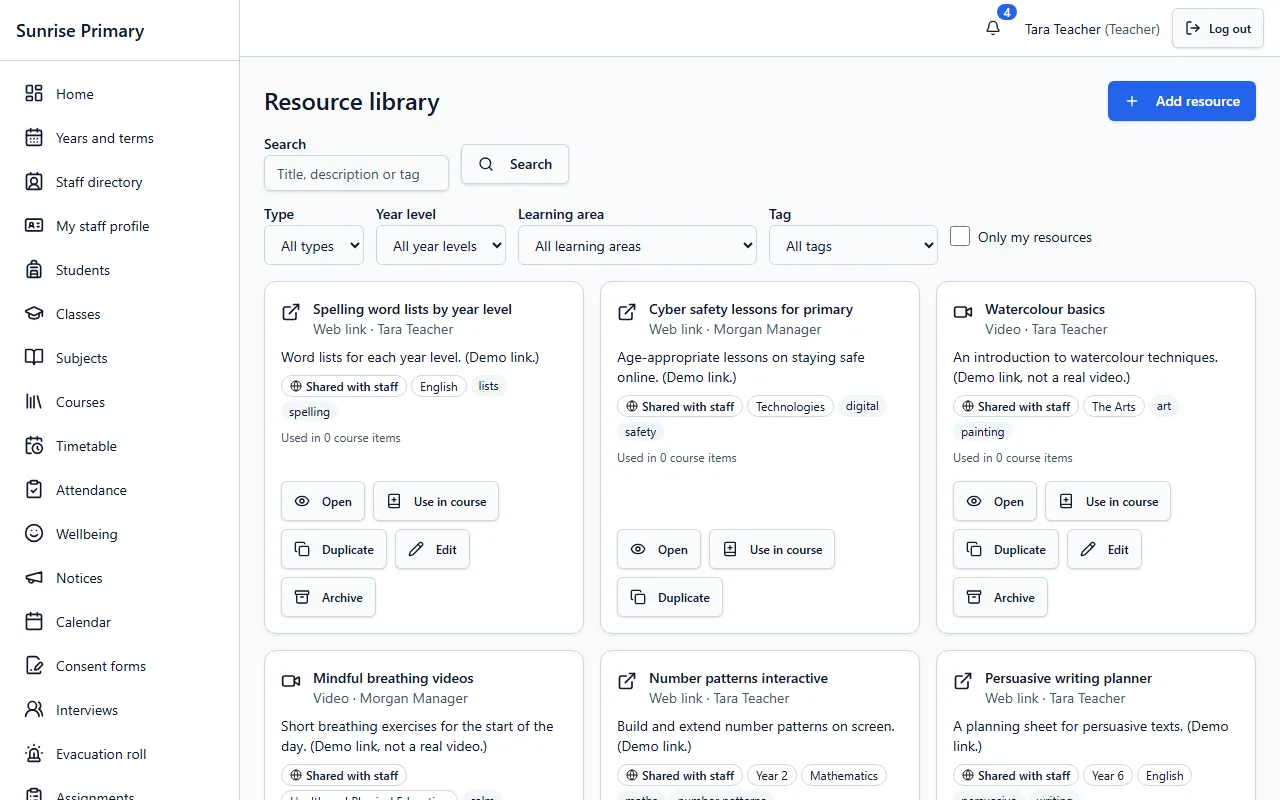
Resources
Teachers add lesson links and videos to a shared library, tag them by type, year level and learning area, and search or filter to find them again. A resource can be opened, duplicated or used inside a course.
Who can see itTeachers and other staff. Each resource shows who it is shared with.
Groups
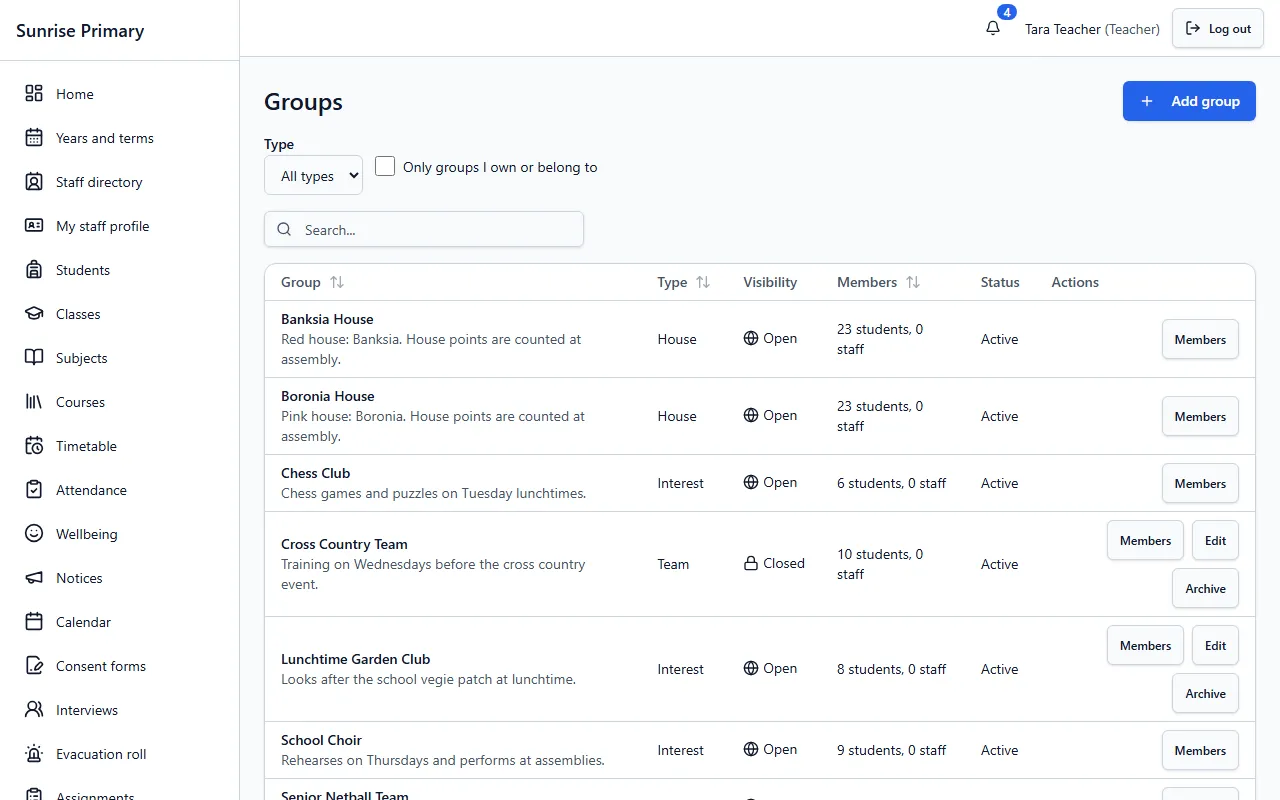
Staff create groups such as houses, clubs and teams, add students to them and mark a group open or closed. Each group shows its type, how many students and staff belong, and who looks after it.
Who can see itStaff manage groups. Students see the groups they belong to, and families see the groups of their own children.
Portfolios
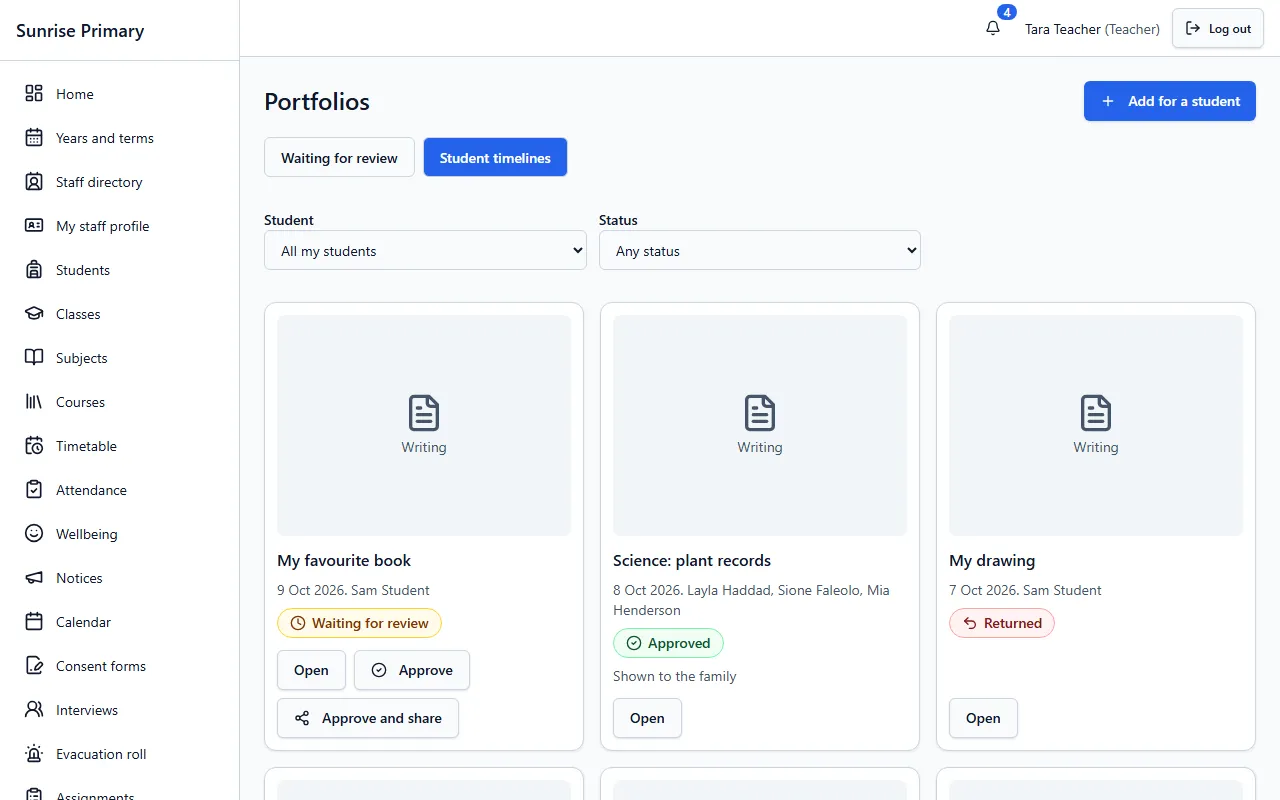
Work samples go into a portfolio with a review status. A teacher approves an item, sends it back, or approves and shares it with the family, so nothing reaches a family until the teacher says so.
Who can see itTeachers review. Students have their own portfolio view, and families see an item only after it has been approved and shared.
Awards and badges
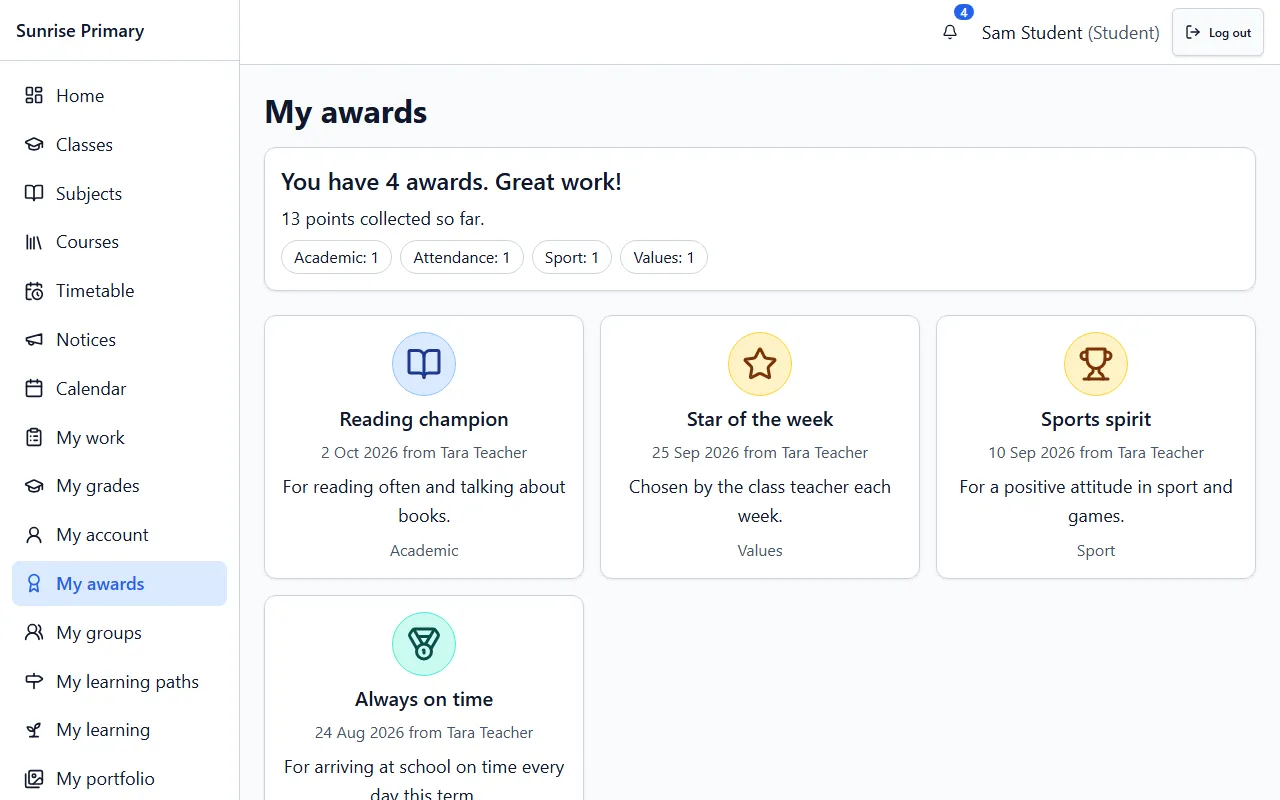
Teachers choose from the school’s list of awards, each with a category and a points value, and give one to a student. A student sees every award they have earned, with who gave it and why, and a running points total.
Who can see itTeachers give awards. Each student sees their own awards, and families see the awards of their own children.
Student portal: My day
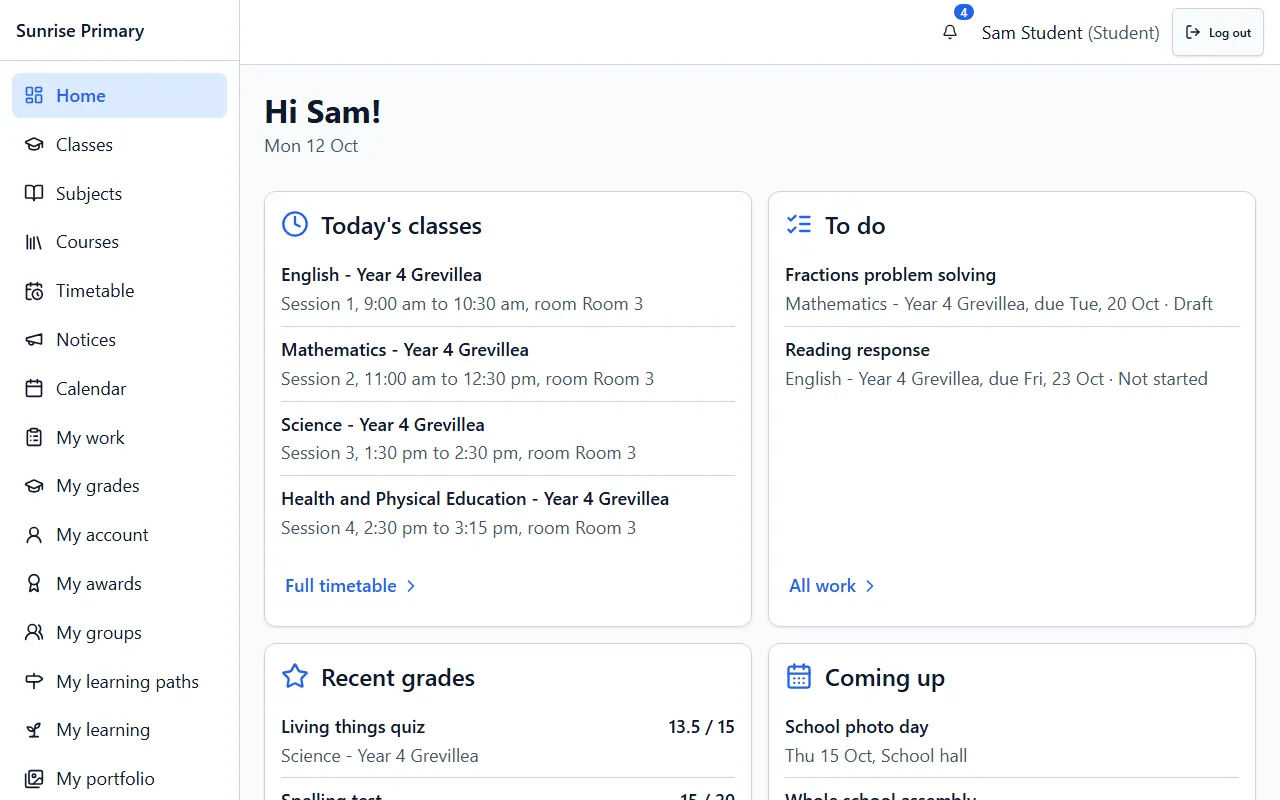
A student signs in and sees today’s classes with room and time, the work still to do, recent grades and what is coming up at school, on one calm screen.
Who can see itEach student sees only their own day.
Other feature groups
Every screen on these pages comes from a demo school with fictional people, or is labelled as a sample.
Ready to see it with your school?
Register for a free 30-day trial. No card needed.